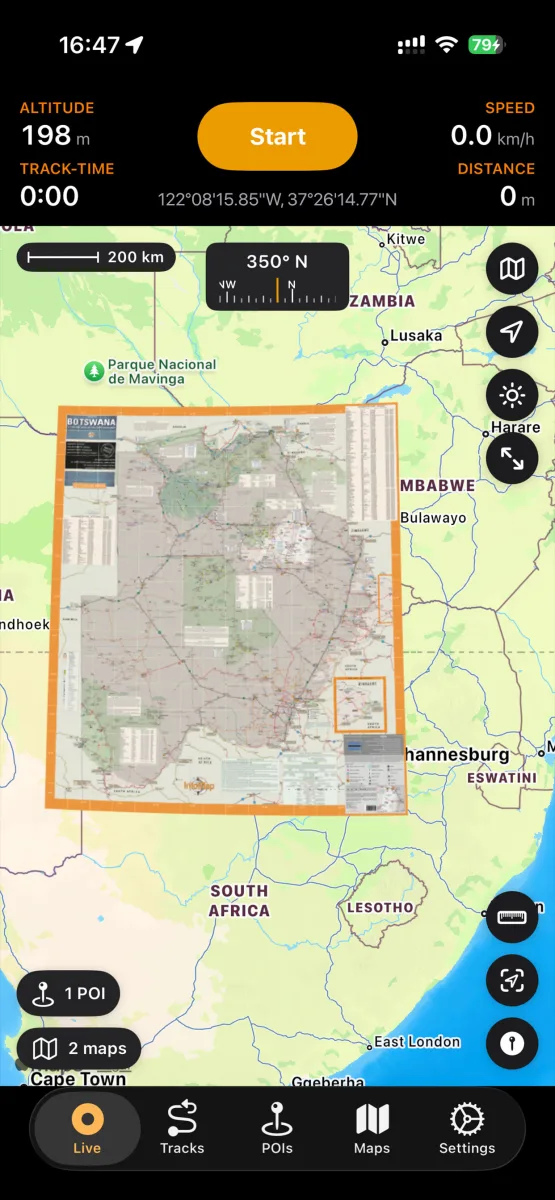
How to georeference a paper map and use it as a live overlay
National-park handouts, trail-association PDFs, scanned topo sheets, even historic maps — most of the best maps never make it into digital map apps. NomadTracks fixes that: you import or photograph the map, anchor it to the world with a few control points, and from then on it behaves like any other basemap, with your live position on it.
There are two paths: maps that are already georeferenced (PDFs/TIFFs with embedded coordinates, like Avenza-style maps) import in one tap. Everything else — including a photo of a paper map — you georeference yourself in about two minutes.Tip for US public lands: the Bureau of Land Management’s georeferenced PDF library offers thousands of already-georeferenced maps for free download — national monuments, recreation areas and BLM lands. Those import into NomadTracks with zero setup.
Get the map into NomadTracks
Open the Maps tab and tap +. Pick a PDF or TIFF from Files, or choose the camera option and photograph your paper map — flat, evenly lit, straight from above works best. Georeferenced PDFs and TIFFs are recognized automatically and are ready to use immediately.
Open the georeferencing editor
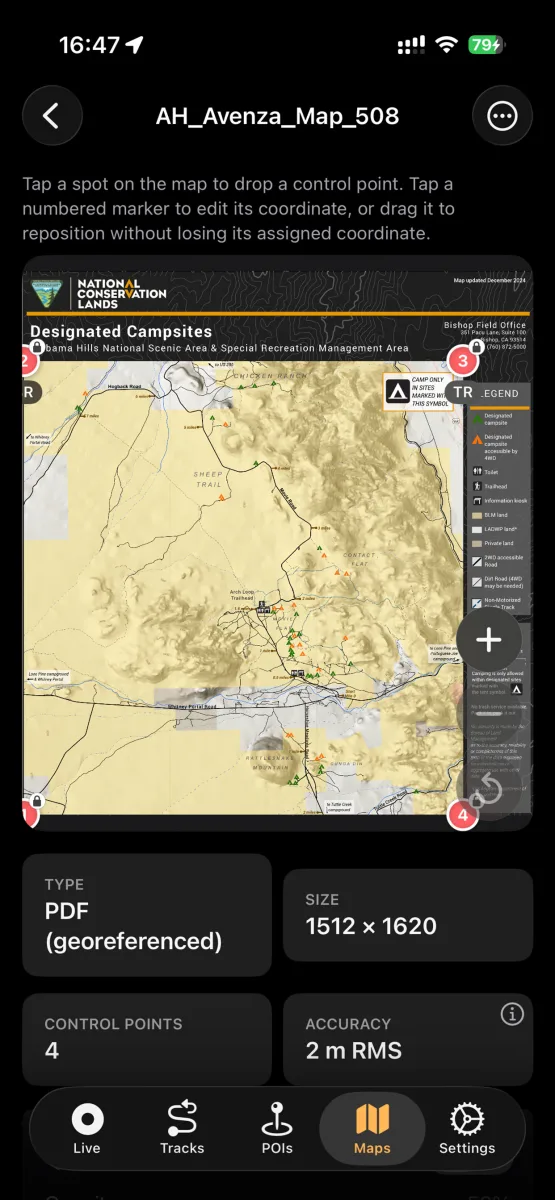
For a plain image or non-georeferenced PDF, NomadTracks opens the control-point editor: your map on top, the live world map below.
Set the first control point
Tap a spot on your map that you can identify precisely — a road junction, a summit, a building corner. Then tap the same spot on the live map. That pair is control point 1.
Add three or more points, spread out
Repeat for at least 3–4 points spread across the whole map — corners work well. The wider the spread, the better the alignment. You can drag any numbered marker to fine-tune it without losing its assigned coordinate.
Check the accuracy readout
NomadTracks shows the alignment quality as an RMS value (root mean square error) — e.g. “2 m RMS” means your overlay is aligned to within about two meters. If the number looks bad, nudge the worst control point or add another one.
Use it on the trail
Save the map and enable it as an overlay. Your live GPS position, tracks and POIs now appear on your own map — and because the map is stored on the device, it works with no signal at all.